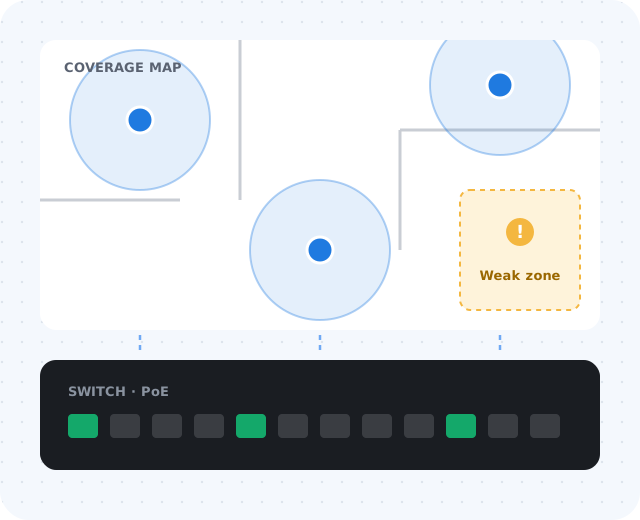
Wi-Fi reliability affects more than browsing.
Business Wi-Fi supports phones, meetings, printers, payment systems, tablets, guest access, inventory devices, and customer experience. When it is unstable, the impact shows up as:
- Dropped video meetings and unreliable calls
- Slow cloud applications
- Point-of-sale and printer problems
- Frustrated employees and repeat support tickets
Understand the real problem first.
Without a review, a business may spend money on hardware that does not address the cause. Ask:
Coverage
Is the issue signal coverage — or the access point in the wrong place?
Bandwidth
Is the internet connection or the firewall the bottleneck?
Density
Are too many devices connected, or users on the wrong network?
Interference & cabling
Is old cabling or nearby equipment limiting performance?
Why "just add another access point" can backfire.
More equipment does not automatically mean better Wi-Fi. Poorly placed or misconfigured access points can interfere with each other — overlapping channels, too much signal in one area and not enough in another, and devices that cling to the wrong access point.
Placement matters as much as specs.
A strong access point in a bad location still produces poor results. Placement should account for walls, glass, metal, and concrete; conference rooms and high-traffic areas; warehouses and shelving; neighboring networks; outdoor needs; and where people actually sit and work.
A planned layout beats putting equipment wherever cabling already exists. The goal is not just strong signal — it is reliable connectivity where business work happens.
Review firewall, switching, and cabling.
Access points depend on the wired network behind them. Wireless upgrades often reveal wired issues that were already there. Review:
- Cable quality and network closet organization
- Switch age, speed, and Power over Ethernet support
- Uplink speed and VLAN support
- Firewall throughput and internet service capacity
- Firmware and security updates
Separate business, guest, and device traffic.
A reliable network should also be a safer one. Segmentation protects internal resources and makes troubleshooting easier.
Plan for device density and growth.
A small office may have more wireless devices than expected — laptops, phones, tablets, printers, cameras, conference systems, smart TVs, and specialty devices. A design that worked for ten devices may struggle at fifty. Plan for more employees, more devices per person, additional meeting rooms, video calls, voice, and new cloud tools.
Monitor after the upgrade.
Wi-Fi planning does not end at installation. Managed monitoring helps spot overloaded access points, failing equipment, interference, guest traffic problems, and firmware needs — so the network improves over time instead of degrading.