Replacement shouldn't depend on failure.
Replacing computers only when they break feels cost-effective, but it creates hidden costs: emergency purchases, lost productivity, delayed projects, mismatched models, more support time, security gaps, and data migration under pressure. A lifecycle plan turns replacement into a predictable process instead of an emergency.
Signs a workstation is costing too much.
The better question is not "Does it still turn on?" but "Is this device still helping the employee work effectively and securely?" Warning signs include:
- Slow startup, long app load times, or poor video meetings
- Frequent crashes, repairs, or storage limits
- Upgrades no longer solve performance problems
- Unsupported or near-end-of-support operating system
- Out of warranty while business-critical
- Security or management tools don't work reliably
- The employee's role has outgrown the hardware
Security is part of the lifecycle.
A device that cannot be kept current becomes a business risk. Check each workstation for operating system support dates, firmware and browser updates, endpoint protection compatibility, disk encryption, remote management, MFA support, and hardware-based security features.
Build a practical replacement schedule.
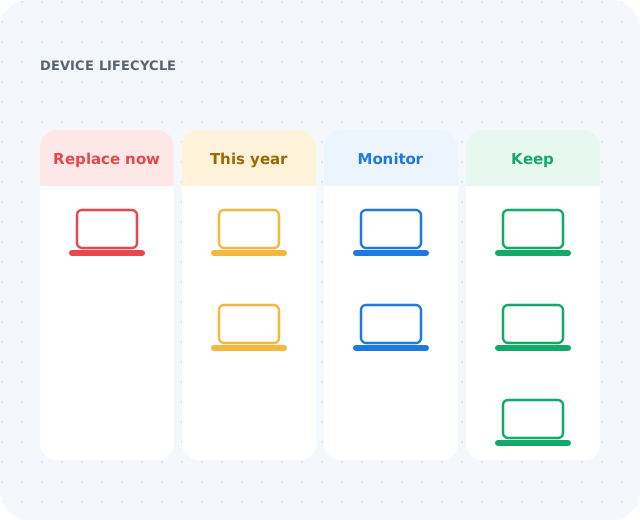
A lifecycle plan does not mean replacing everything at once. Group devices so leadership can budget, compare options, and schedule replacements with less disruption:
Match devices to job roles.
Not every employee needs the same machine. Role-based standards make purchasing and support easier:
Standard office
Reliable, managed, and easy to replace.
Power users & designers
More memory, storage, and graphics where work demands it.
Field & remote staff
Portability, battery life, and secure remote access.
Shared & temporary
Conference systems, shared stations, and short-term staff.
Plan setup, migration, and retirement.
Before replacing a device, document the assigned user, device name, serial number, installed and role-specific applications, printers, shared drives, browser portals, email setup, and security enrollment. Then follow a consistent process:
- Select the right device for the role
- Enroll in management, apply updates and security tools
- Migrate user data and confirm application access
- Set up MFA, email, printers, and peripherals
- Wipe company data from the old device and update inventory
- Recycle or securely dispose of retired hardware